Best Practices for Locking Down Admin Access to UniFi Controller
Introduction
Admin access to your UniFi Controller is powerful, but that power brings significant security responsibility. With the wrong setup, anyone with the URL can make changes, see traffic, or even lock you out. But with a few strategic tweaks, you can lock things down so only trusted people have access, with only the rights they need.
Key Discovery: UniFi Network Controller 10.1.84 has a critical permission behavior you need to understand: setting the "Administrator" role on any single site automatically grants that account Administrator permissions across ALL sites. This makes proper admin configuration even more important for security.
UniFi Login Page
For a complete guide on creating administrator accounts, including how to set up global administrators, see our detailed walkthrough: How to Create a Global Administrator Account in UniFi Network Controller
Why Securing Admin Access Matters
Your UniFi Controller controls your entire network infrastructure. Give anyone admin rights, and they can:
- Change firewall rules
- Reset or reconfigure devices
- View network traffic and logs
- Create security backdoors
- Even disable your remote access
A bad configuration or a compromised account can ruin uptime, data privacy, and network security. Half the battle is preventing those situations before they happen.
Understanding UniFi's Two-Level Permission System
UniFi uses a two-level permission architecture that every admin needs to understand:
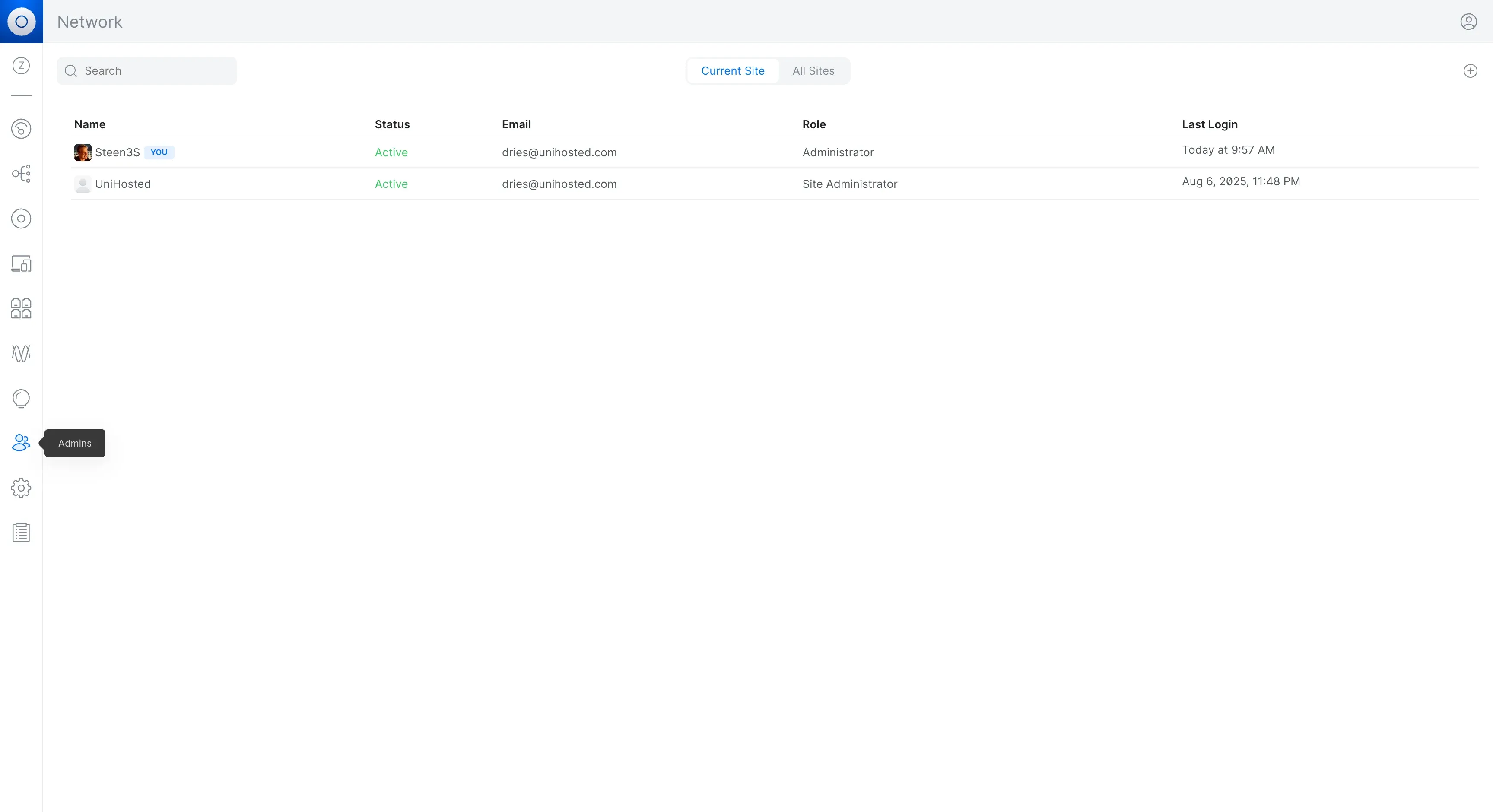
UniFi Admins Management Page
Level 1: Account Type (Global)
Set at account creation and cannot be changed:
- Administrator: Full controller access (only available to primary account created during setup)
- Site Administrator: Can be assigned to specific sites
- Hotspot Manager: Guest portal only
- View Only: Read-only access
Level 2: Site Permissions (Per-Site)
Can be modified anytime after creation:
- Controls access to individual sites
- Critical: Setting "Administrator" on any site = global admin access to ALL sites
Security Implication: Be extremely careful when granting "Administrator" permissions on any site, as it automatically elevates the account to full controller-wide admin status.
1. Use Individual Admin Accounts, No Generic "Admin"
UniFi lets you add separate admin accounts with specific permissions. And you should use them.
- Don't share a generic "admin" login. It gives no accountability
- Assign each person a unique account. That way you know who made what change, and you can disable access without impacting others
- It also helps if someone leaves or their account is compromised. You just revoke their credentials without disrupting the team
Pro Tip: Create accounts as "Site Administrator" initially, then carefully promote specific accounts to "Administrator" role on one site only when global access is truly needed. Learn the exact process in our Global Administrator Guide.
2. Implement Role-Based Access Control (RBAC)
UniFi supports custom roles. Not everyone needs full control.
Here's how to manage it:
- Full Admin: Only for your senior network staff who absolutely need it. Remember: one "Administrator" role assignment = access to everything
- Site Administrator: For site managers or technicians who need to manage specific locations but don't need global controller access
- Read-only: For stakeholders who only need visibility without making changes
- Hotspot Manager: For guest Wi-Fi administrators
- App-specific roles: Protect, Access, Talk, etc.
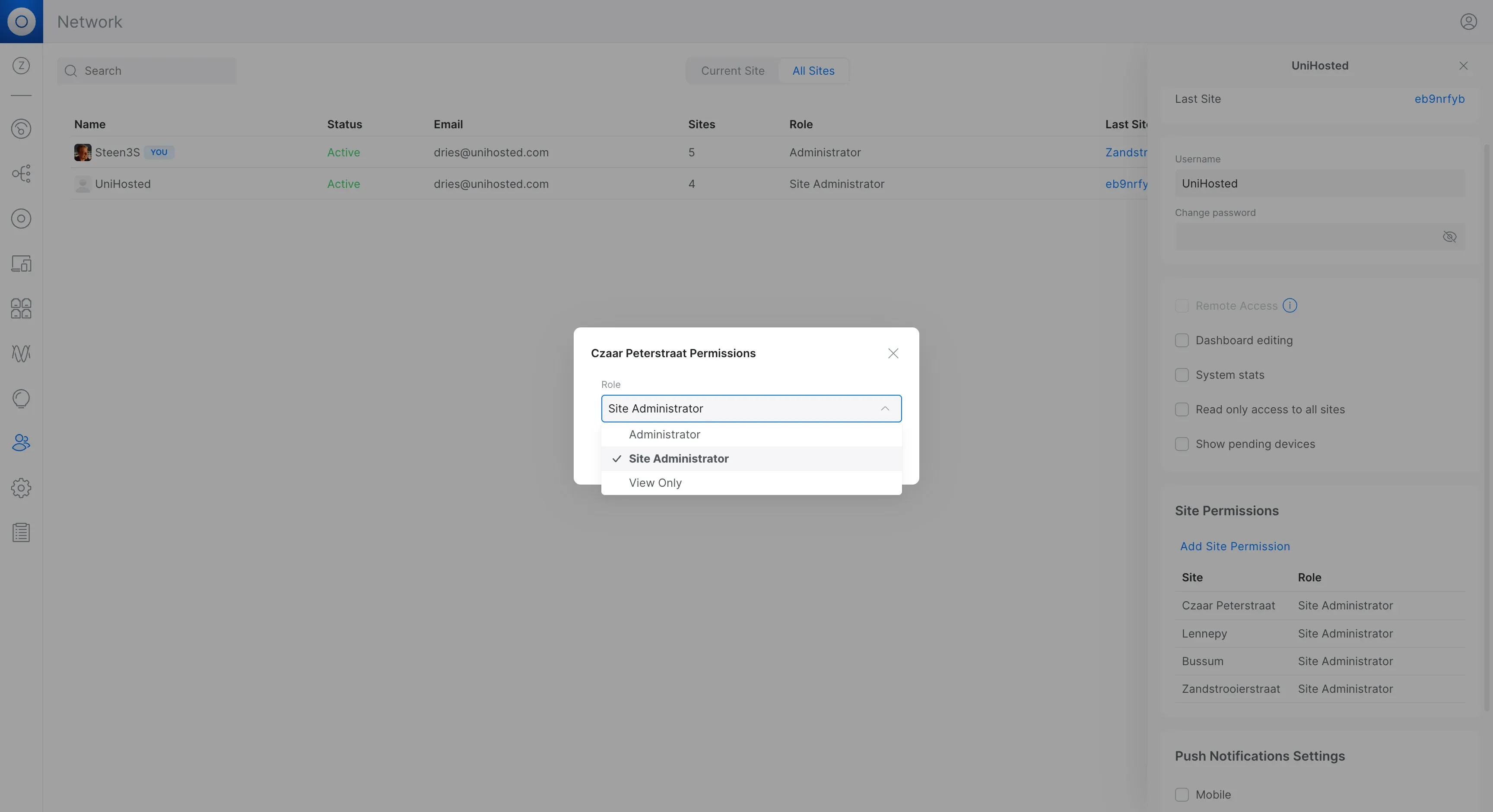
Role Dropdown Options
Security Best Practice: When creating new admins, always start with the lowest necessary permission level. You can always elevate permissions later, but you can't undo security incidents.
3. Create Local Backup Admin Accounts (No SSO)
Critical for Business Continuity: Always maintain at least one local administrator account that doesn't depend on Ubiquiti's SSO.
Why this matters:
- Works during internet outages
- Not dependent on Ubiquiti cloud services
- Provides emergency access if SSO fails
- Essential for MSPs managing client networks
How to create:
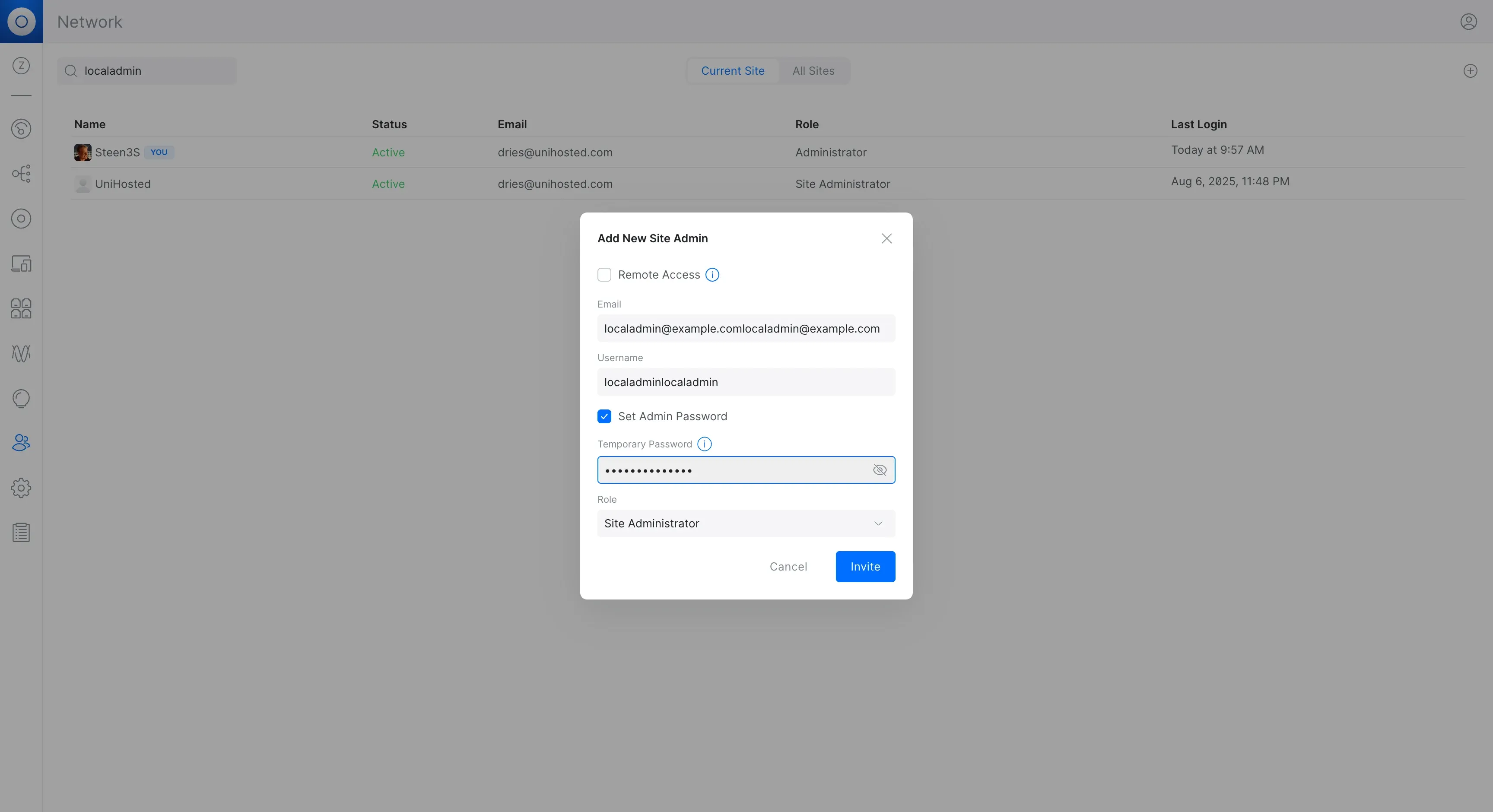
Create Local Admin Account
- When adding a new admin, uncheck "Remote Access"
- Check "Set Admin Password"
- Set a strong local password
- Store credentials securely in your password manager
For detailed steps with screenshots, see: How to Create a Global Administrator Account in UniFi Network Controller
4. Enable Two-Factor Authentication (2FA)
Passwords can leak. 2FA adds a second layer of security.
- Require 2FA for every admin account, especially those with Administrator permissions
- Use Google Authenticator, Authy, or similar
- Think of it as a digital lock—without the second key, access is blocked
Note: 2FA is even more critical for accounts with global Administrator access since they can control everything.
5. Lock the UI Using Firewall and VPN
Think twice before exposing your controller to the internet.
- Avoid opening port 8443 for everyone; it makes your controller a public target
- Instead, lock access to trusted IPs, your office VPN range, known remote worker IPs, or zero-trust endpoints
- Even better? Don't open anything externally, require VPN or UniFi Teleport access for admins
That way, even if credentials are stolen, attackers can't log in from random networks.
6. Always Use HTTPS with a Trusted Certificate
Admin pages must be encrypted. SSL stops attackers from stealing session data.
- Don't use self-signed certs; browsers will flag them
- Use Let's Encrypt or a trusted cert provider
- Ensure all admin URLs use HTTPS. Never allow unsecured connections
7. Keep Firmware and Controller Updated
Ubiquiti regularly patches vulnerabilities. Stay ready.
- Check for updates weekly
- Apply controller updates during off-hours
- If in managed environments, hold back updates slightly until vetted
- The latest updates improve not just features but also security
8. Secure Administrative Interfaces
If your controller runs on a cloud VM or local server:
- Use SSH keys, not passwords, for remote access
- Lock down SSH to specific IPs; disable root login
- If using HTTPS, disable weak TLS protocols and ciphers
- Block unused services or open ports
Don't just trust UniFi's web UI, secure the entire environment.
9. Regular Backups and Auditing
Track and recover.
- Schedule regular backups (daily/weekly) and store them off-site
- Use UniFi's export feature and secure storage (cloud, NAS)
- Keep audit logs enabled: who logged in, what they changed
- Every month, scan logs for unauthorized access or surprises
Pay special attention to: Any account changes where a Site Administrator role was changed to Administrator—that indicates global access was granted.
10. Disable Idle and Unused Accounts
Letting stale accounts linger is a risk.
- Lock a user's account when they leave or change roles
- Remove unused local admin accounts from cloud permissions if remote access isn't needed
- Periodically review who still needs admin access
- Monthly audit: Check if any accounts have been promoted to Administrator role unexpectedly
11. Enforce Password Policies
UniFi doesn't force complex passwords by default, but you should.
- Use minimum length (12+ characters)
- Require a mix: uppercase, lowercase, numbers, symbols
- Use a password manager
- Never use dictionary words, birthdays, or reuse passwords
- For local admin accounts: These bypass SSO password policies, so manually enforce strong passwords
12. Monitor Admin Activity
You can't secure what you don't watch.
- Enable logging of admin events
- Set alerts for changes like "new admin added" or "firmware downgraded"
- Check logs after maintenance: any unusual activity?
- Critical alerts to watch for:
- Role changes from Site Administrator to Administrator
- New admin accounts created
- Password changes on local accounts
- UniFi OS includes Security Insights—use it to track user access and alerts
13. Use UniFi Identity for Multi-Site Management
If you manage multiple controllers/sites:
- Use a single UniFi Identity account
- Give each admin site-level permissions via Identity portal
- This avoids duplicate accounts and lets you revoke access across sites in one hit
Caution: Even with Identity, remember that granting "Administrator" role on any site gives global access. Use Site Administrator roles unless full global access is required.
14. Plan for Disaster Recovery
What happens if worst-case strikes?
- Store controller backups and config regularly
- Save firewall configs, VPN settings, SSL certs
- Rehearse restoration—time matters
- Have an alternate admin process (SSH via console, backup account)
- Critical: Maintain at least one local admin account with documented credentials for emergency access
Common Security Mistakes to Avoid
- Accidentally granting global access: Remember that Administrator role = all sites
- Sharing credentials: Never share accounts, always use individual logins
- No local backup: Always have a non-SSO admin for emergencies
- Not reviewing permissions: Regularly audit who has what access
- Exposing port 8443: Use VPN instead
- Ignoring local accounts: These can bypass SSO 2FA—secure them carefully
Community Tips from Admins
Reddit users and MSPs share what's worked for them:
"Put all the sites in your own cloud controller ... then any sites added, you have admin over automatically."
"We use HostiFi.com ... SSH is enforced via private keys and logins have 2FA capability."
"Don't open anything to the WAN. Just set up a VPN server and have everything available via LAN."
These comments echo the importance of central hosting, secure access, and isolation from the internet.
Related Resources
- How to Create a Global Administrator Account in UniFi Network Controller - Step-by-step guide with screenshots
- Setting up administrators in UniFiOS - Administrators, roles and permissions
- How to restore UniFi Controller - Restoring a controller from backup
Why This Matters
Hungry attackers, misconfigurations, or simple mistakes can all lead to compromised network access. With proper admin lockdown, you:
- Prevent unauthorized changes
- Maintain accountability
- Reduce risk of data exfiltration
- Ensure stability and uptime, even if credentials leak
- Stay compliant with privacy standards
UniFi is powerful, but it's only safe in experienced hands. Understanding the permission system—including the single-site-to-global Administrator behavior—is crucial for maintaining security.
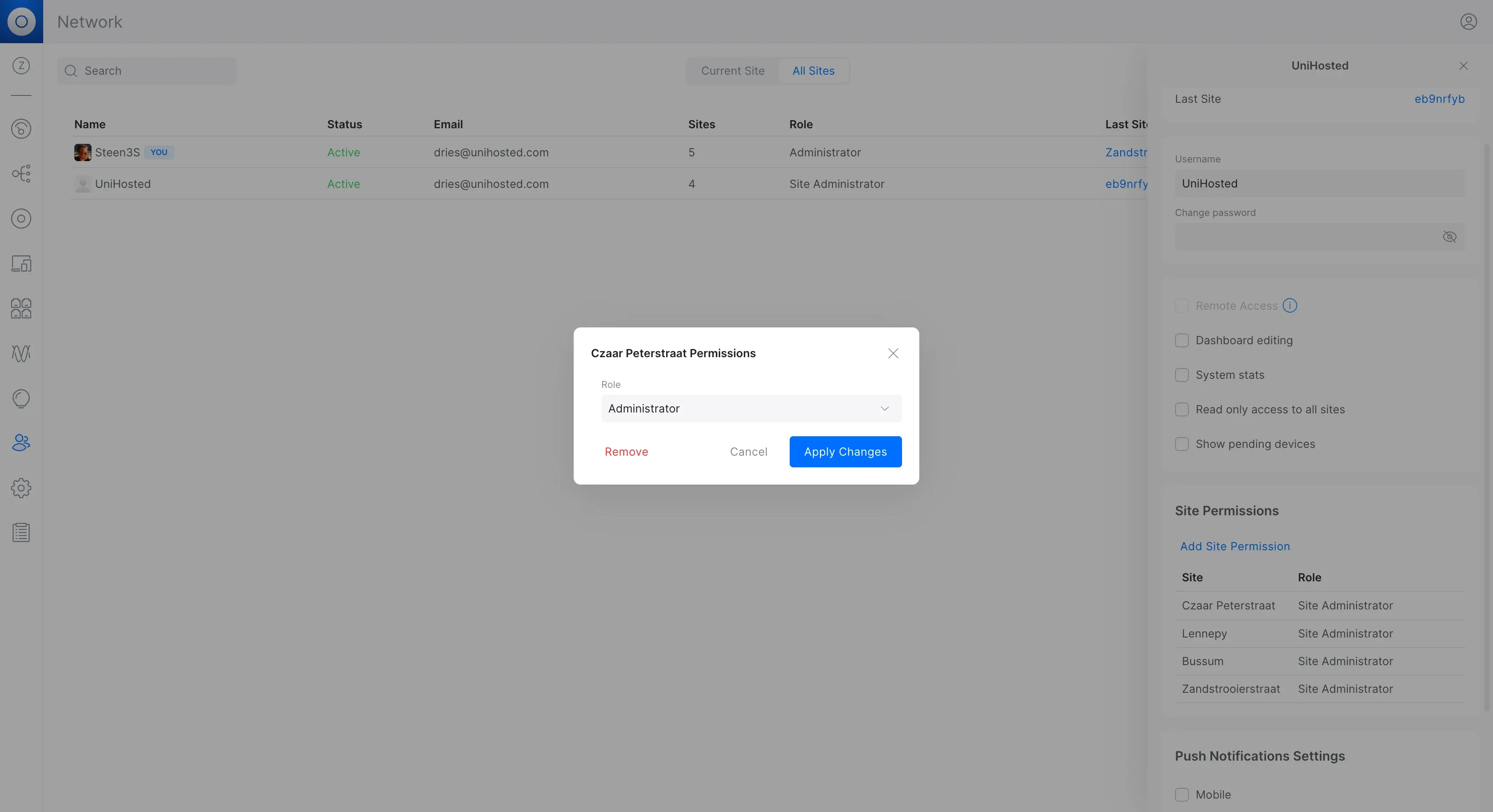
Admin Role Successfully Changed
Final Thoughts
Locking down admin access isn't extra work, it's essential. With unique accounts, proper role assignment (understanding that Administrator = global access), strong passwords, 2FA, restricted access, and active monitoring, you build a secure foundation.
Key Takeaway: The most critical security control is understanding that granting "Administrator" role on any site gives that account access to everything. Use this permission sparingly and only for trusted personnel who truly need global access.
And if you're managing multiple clients or sites, skip self-hosting. Let us at UniHosted handle your controller hosting. We follow all these best practices automatically—including maintaining secure local admin backups—so you can focus on network performance, not servers or security patches.
Need help setting up proper admin access controls? Our team can guide you through creating the right permission structure for your specific needs.