Creating a Site Admin in UniFi OS
A focused guide on assigning the Site Admin role the usual way, straight on the UniFi OS server, including a labeling bug you'll hit there and how to work around it.
The Site Admin role
A Site Admin (Network) has administrative authority over specific site(s) only. On a multi-site server, their scope is limited to the sites you assign, they can configure those sites but can't touch others, or the server-wide settings reserved for Super Admin / Owner. Use it for regional IT leads, site managers, or anyone who should only manage one location.
Creating a Site Admin
This is the standard method: log straight into the UniFi OS server and create the admin there. It's the most reliable path in general, and it's where most of us will do this day to day.
Prerequisite: if Remote Management is enabled, the admin must have a UI Account at account.ui.com.
- Log in to the UniFi OS server directly (by IP or FQDN) → People → Create New → Create New User.
- Fill in the first and last name and email, then tick the Admin box.
- To scope the admin per site instead of applying a blanket role, turn off Use a Predefined Role and expand the Network Application permissions dropdown.
- Pick the Site Admin entry for each site you want to grant, stop here and read the bug note below, because the labels won't tell you which entry belongs to which site.
- Once you've selected the right entries by position, hit Create. The admin gets an email invite to accept.
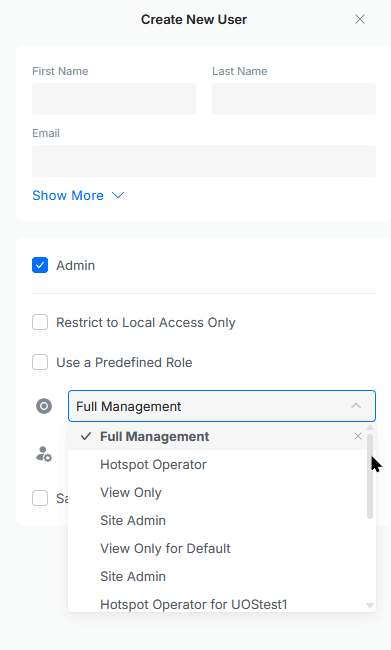
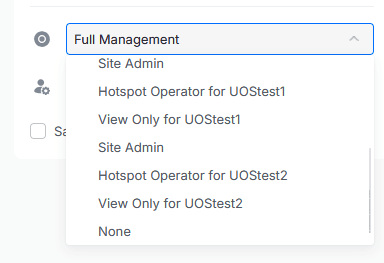
Bug: the Site Admin label is missing its site suffix
When you open that Network Application permissions dropdown, every role is supposed to show as <Role> for <Site> so you can tell sites apart. On non-default sites, most of them behave:
View Only for UOStest1Hotspot Operator for UOStest1
Site Admin, however, never picks up the suffix, not for the default site, not for any other. So with multiple sites you get a stack of identical-looking entries:
Site Admin→ default siteSite Admin→ UOStest1Site Admin→ UOStest2
They aren't true duplicates; each one is tied to a different site. The label just doesn't say which.
Workaround, pick by position, not by label. The dropdown order is consistent even though the text is broken:
- For the default site, Site Admin is the fourth item from the top.
- For any other site, Site Admin is the unlabeled line sitting directly above
Hotspot Operator for <site>.
Nail those positions and you'll scope the right site every time.
Alternative: use Site Manager (a workaround, with its own caveats)
If you'd rather not fight the dropdown, Site Manager renders the labels correctly, its Site Admin entries show the right site, so it sidesteps the suffix bug above. Handy when you need it.
Prerequisite: the admin must have a UI Account at account.ui.com.
- Log in to Site Manager → People → New Admin.
- Enter the admin's email.
- Click Select Sites and pick the site(s).
- Under Network Application permissions, choose Site Administrator per site (use the Site Specific toggle for per-site variance).
- Click Add, the invite goes out and the admin shows as pending until accepted.
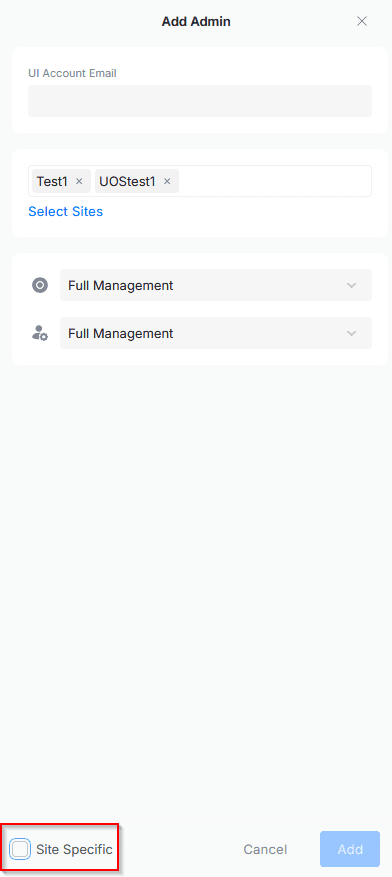
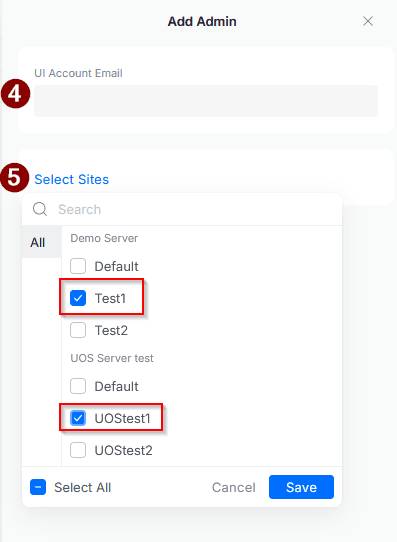
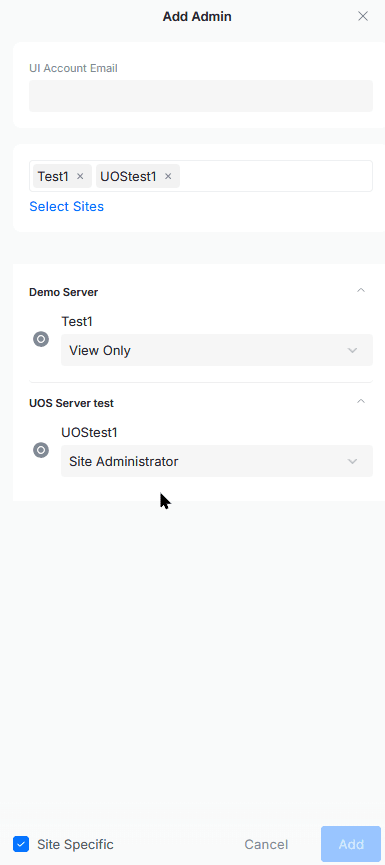
But keep expectations realistic: Site Manager is buggy in its own ways. For example, if you leave Control Plane permissions unset, the admin can silently inherit Full Management on the Control Plane instead of "none." So treat Site Manager as a workaround for this particular suffix bug, not as a guaranteed-clean alternative, and always double-check what actually got granted afterward.
Wrapping Up
Quick recap for creating a Site Admin in UniFi OS:
- Default to the local console. Log in directly, turn off "Use a Predefined Role," and scope the admin per site. It's the reliable, day-to-day method.
- Mind the suffix bug. Site Admin never shows its
for <site>label, so the dropdown looks duplicated. Select by position instead: fourth from the top for the default site, and the unlabeled line aboveHotspot Operator for <site>for the rest. - Site Manager is the escape hatch, not a silver bullet. Its labels are correct, which dodges this bug — but it has its own quirks (e.g., Control Plane permissions silently defaulting to Full Management). Verify what actually got granted after you add the admin.
That's it. Thanks for reading, and happy networking.
When does Managed UniFi hosting make more sense?
Managing UniFi at scale introduces operational risk: inconsistent versions, manual backups, expiring certificates, and hardware failures. Many MSPs move to hosted UniFi controllers to centralize infrastructure while retaining full network control.
If you’re tired of managing controllers yourself or need better tools for remote sites, we built UniHosted to solve exactly that. Our managed UniFi hosting services include debug tools and remote access out of the box, letting you focus on the network instead of the server.