Add a Global Administrator account in UniFi Network
Introduction
Managing a UniFi network infrastructure requires different levels of administrative access. Whether you're running a single site or managing multiple locations, having properly configured administrator accounts is crucial for security and operational efficiency.
In this guide, we'll walk through the complete process of creating a global administrator account in UniFi Network Controller 10.1.84 that has full access to all your sites—without requiring a Ubiquiti SSO account.
UniFi Global Admin vs Site Administrator
Before diving into the setup, it's important to understand how UniFi handles administrative permissions. UniFi uses a two-level permission system:
-
Account Type (Global level): Set when you create the account
- Administrator (full controller access)
- Site Administrator (limited to assigned sites)
- Hotspot Manager (guest portal only)
- View Only (read-only access)
-
Site Permissions (Site level): Controls access to individual sites
- Can be modified anytime after account creation
- Independent of the global account type
Key Insight: Even if you create an account as a "Site Administrator," granting it "Administrator" permissions on any single site will automatically elevate the account to global administrator status across all sites in your controller.
Step 1: Access Your UniFi Controller
UniFi Login Page
First, log in to your UniFi Network Controller. Navigate to your controller URL (typically https://your-controller-ip:8443 or through unifi.ui.com if using cloud access).
Step 2: Navigate to the Admins Section
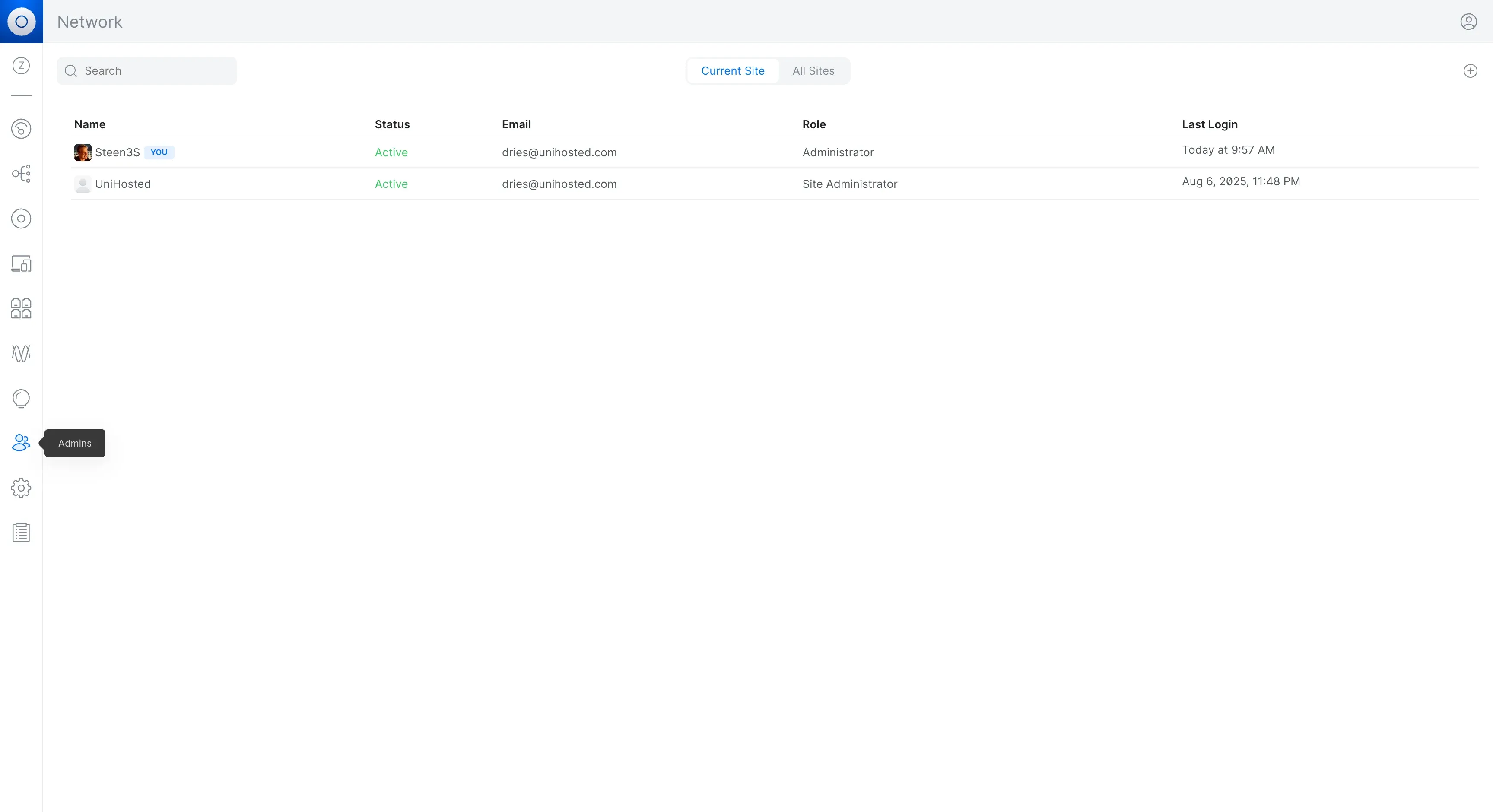
Admins Management Page
Once logged in:
- Click on the Settings gear icon in the left sidebar
- Select Admins from the menu (or click the Admins icon directly in the sidebar)
- Switch to the "All Sites" tab to see administrators across all your sites
This view shows all administrator accounts and their current access levels.
Step 3: Create a New Local Administrator Account
Here's where we create an account that doesn't require Ubiquiti SSO (Single Sign-On):
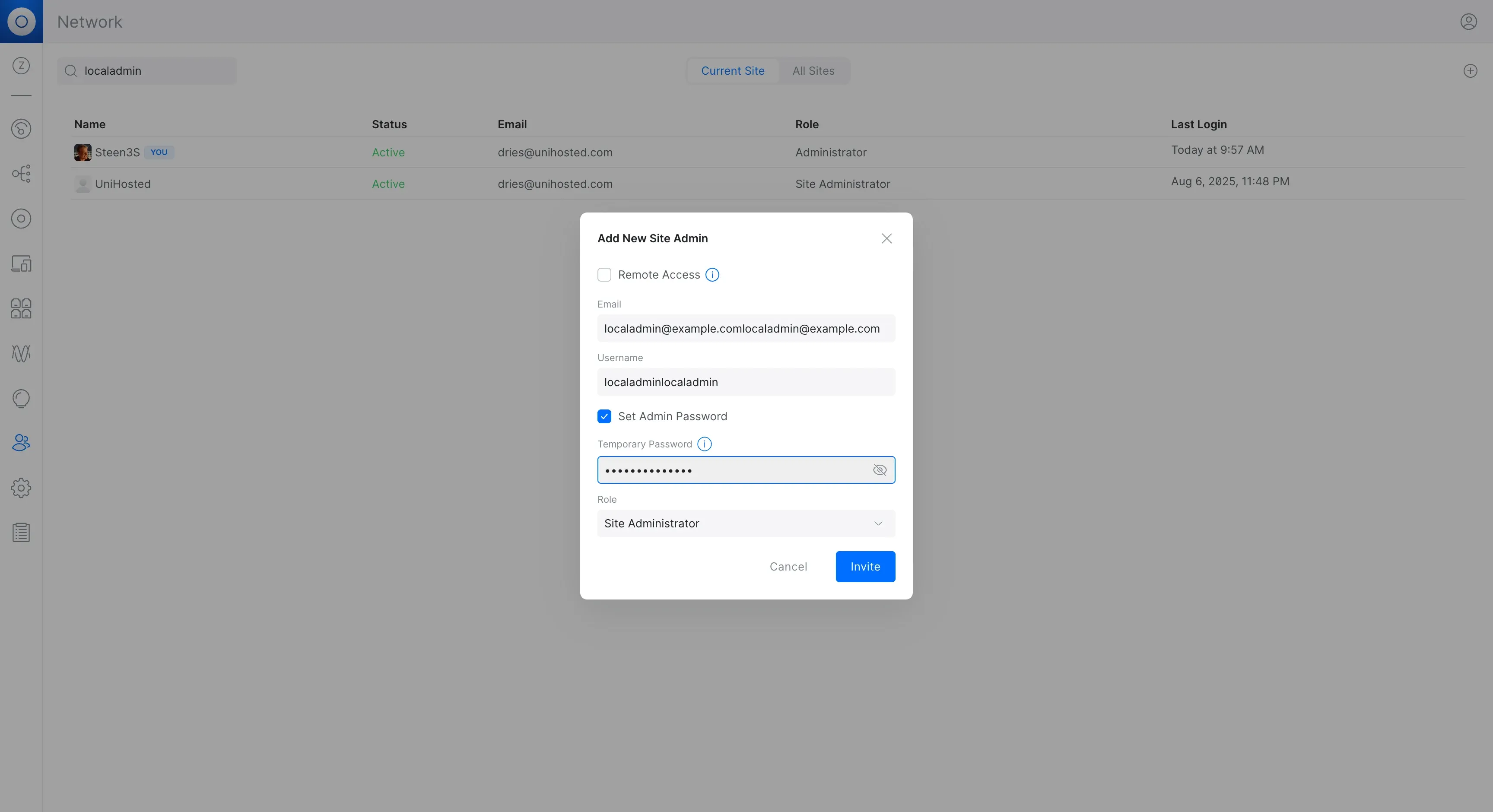
Create Local Admin
Configuration Steps:
- Click the + (Add) button in the top right
- Uncheck "Remote Access" - This removes the requirement for a Ubiquiti account and creates a local-only administrator
- Check "Set Admin Password" - This allows you to set a password directly on the controller
-
Fill in the account details:
- Email: A valid email address for identification
- Username: A unique username for login
- Temporary Password: A secure initial password
- Role: Select Site Administrator (this is the highest role available when creating new accounts)
- Click Invite to create the account
Why Local? Local accounts authenticate directly against your controller, meaning they work even if your internet connection is down or Ubiquiti's cloud services are unavailable. This provides a crucial backup access method.
Step 4: Grant Global Administrator Access (Single Site Method)
Now comes the crucial step—converting this Site Administrator account to a global administrator with access to all sites.
Access the Edit Dialog
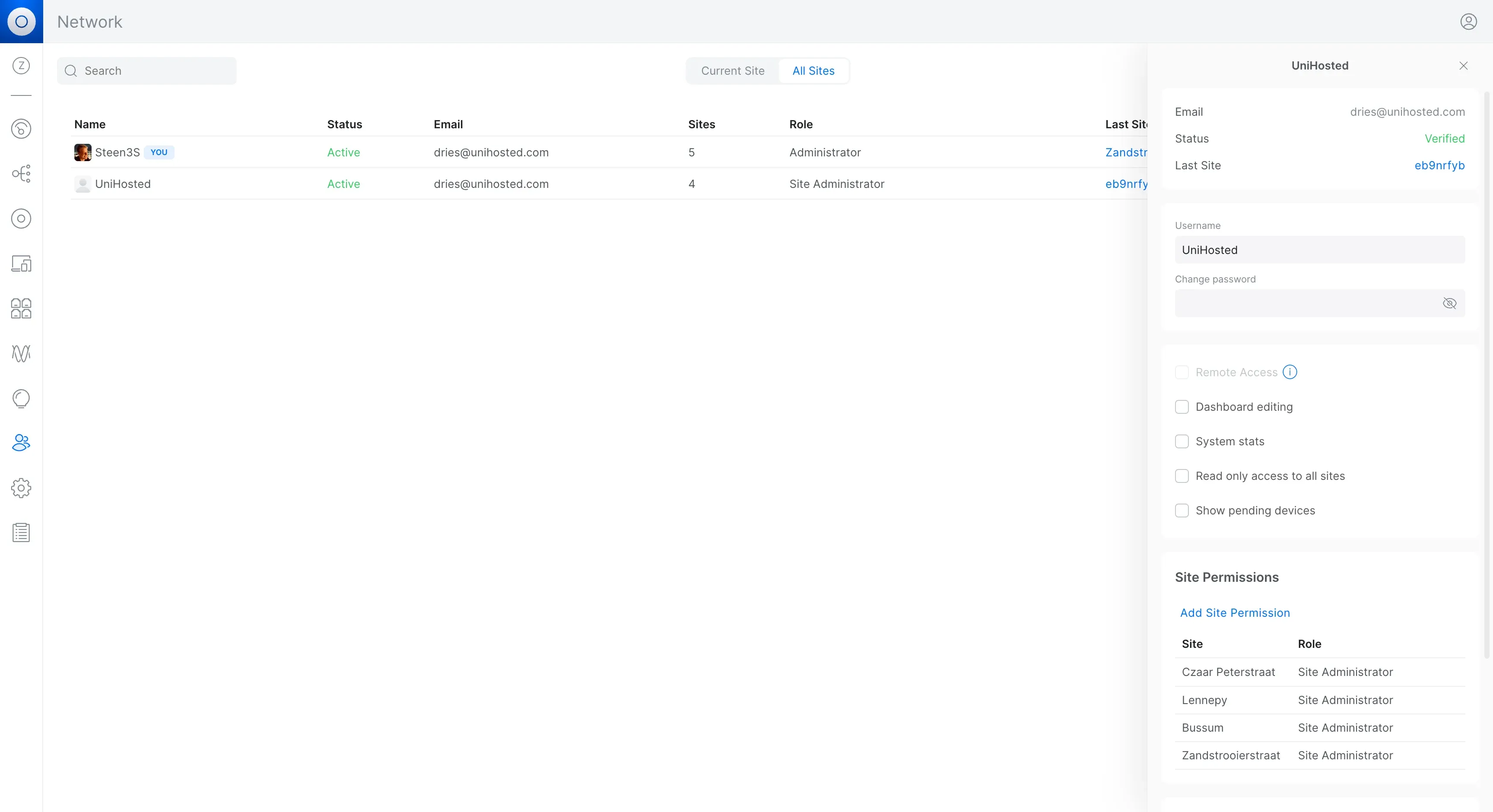
Edit Admin Dialog
- Click on the newly created admin account in the list
- The edit dialog will open showing account details and permissions
- Scroll down to the Site Permissions section
- You'll see a table listing sites this admin has access to
Change Role to Administrator on One Site
Here's the key discovery: You only need to do this once on ANY site:
- Click on the Role column for any one site
- A permissions dialog opens showing "[Site Name] Permissions"
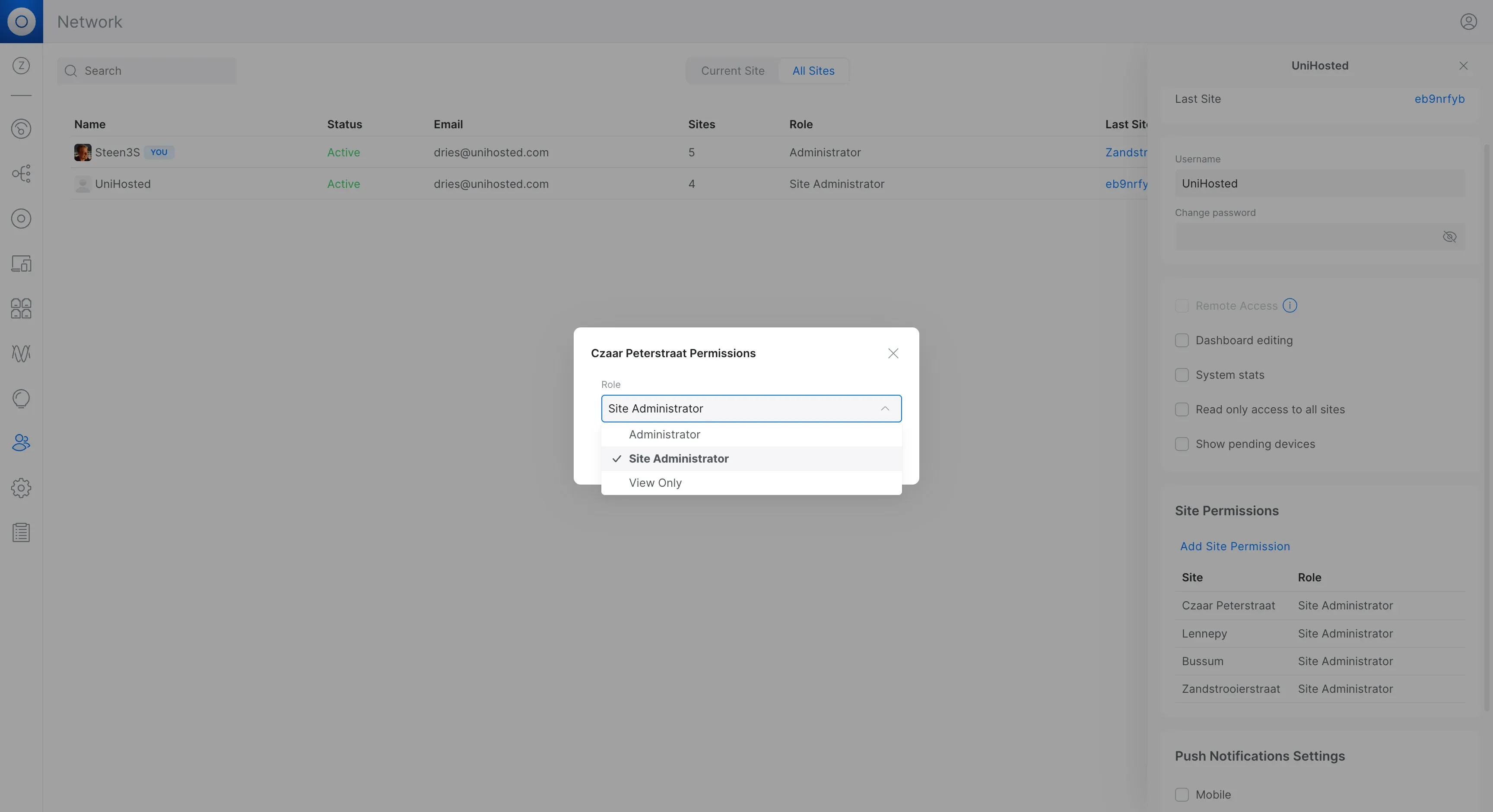
Role Dropdown
- Click the Role dropdown (currently showing "Site Administrator")
- Select Administrator from the options:
- Administrator ← Choose this for full global admin access
- Site Administrator
- View Only
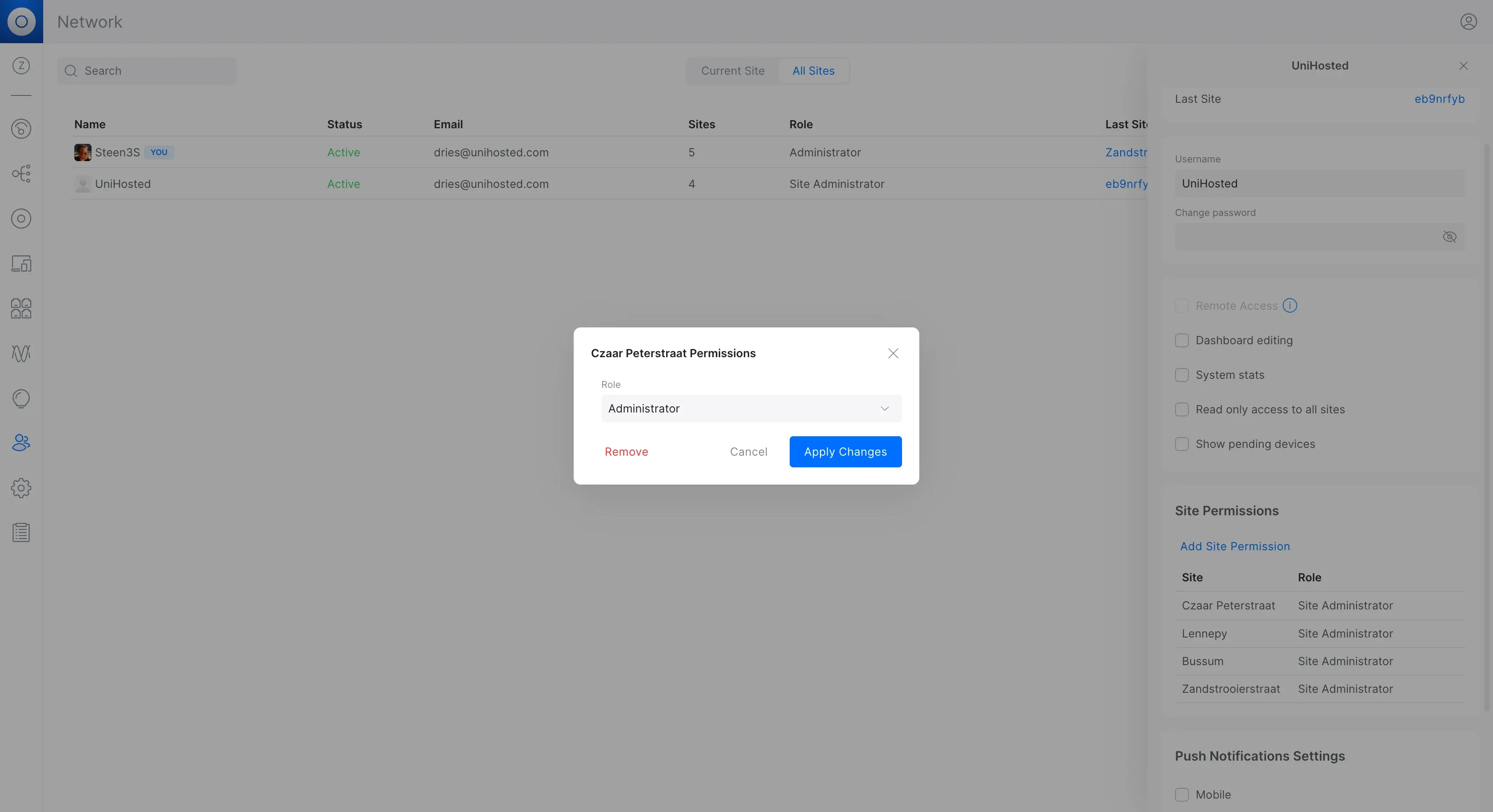
Role Changed
- Click Apply Changes to save
That's It! Global Access Granted
Important: In UniFi Network Controller 10.1.84, setting the role to "Administrator" on just one site automatically grants the account Administrator permissions across ALL sites in your controller.
The account will now have:
- Full control over all sites
- Ability to manage devices and configurations everywhere
- Access to add or remove other administrators
- Complete system settings access
No need to repeat this process for each site—the permission automatically propagates globally once set on any single site.
Understanding This Behavior
This single-site-to-global behavior might seem counterintuitive, but it's how UniFi 10.1.84 handles the "Administrator" role:
- Site Administrator role: Site-specific permissions only
- Administrator role: When granted on any site, automatically applies to all sites
This design ensures that true "Administrator" level access is consistent across the entire controller infrastructure.
Additional Permission Settings
Besides the site-specific role, you can also configure these global permissions for the admin:
- Dashboard editing - Allow customizing network dashboards
- System stats - Access to detailed system statistics and metrics
- Read only access to all sites - View-only access to sites not explicitly assigned
- Show pending devices - Ability to see and adopt new devices
- Push Notifications - Enable mobile and email alerts for network events
These settings give you granular control over what the administrator can see and modify across your infrastructure.
Best Practices for Administrator Management
Security Recommendations:
- Create at least one local backup admin - Essential for accessing your network during internet outages
- Use strong, unique passwords - Each admin should have a complex password
- Limit Administrator role access - Only grant full Administrator permissions to trusted personnel
- Regular account reviews - Periodically audit who has admin access and remove unused accounts
- Enable 2FA where possible - Add an extra layer of security
Operational Tips:
- Document your admin accounts - Keep a secure record of who has what access
- Use descriptive usernames - Makes it easier to identify account purposes
- Test the global access - After setting Administrator role on one site, verify the account can access other sites
Troubleshooting Common Issues
Cannot See "Administrator" Option
If the dropdown only shows "Site Administrator" and "View Only":
- Make sure you're clicking on a site in the Site Permissions section, not the main account role
- The global account role (shown in the main list) cannot be changed after creation
Changes Not Saving
- Always click Apply Changes after modifying permissions
- Check that the admin account status shows as "Active"
- Refresh the page to verify changes persisted
Admin Cannot Access All Sites
- Verify they have "Administrator" role on at least one site (this triggers global access)
- Check that the account wasn't accidentally created with View Only permissions
- Some legacy sites may need to be manually added to the admin's site list
Understanding the Permission Hierarchy
What's the Difference?
Global "Administrator" Account (Primary Owner):
- Created during initial controller setup
- Automatically has access to all sites
- Can add/remove other admins at the controller level
- Cannot be created through the UI after setup
Site Administrator Account → Promoted to Administrator:
- Created as Site Administrator through the UI
- Granted Administrator role on one site
- Automatically becomes global admin for all sites
- Cannot add/remove other admins at the controller level (only site-level)
Permission Comparison:
| Feature | Primary Administrator | Promoted Site Administrator |
|---|---|---|
| Access to all sites | Yes (automatic) | Yes (after setting on one site) |
| Add/remove admins | Controller level | Site level only |
| System settings | Full access | Full access |
| Create via UI | Only during setup | Yes, anytime |
Conclusion
Creating a global administrator in UniFi Network Controller is straightforward:
- Create the account as a Site Administrator (highest role available at creation)
- Edit the account and change the Site Permission role to Administrator on any one site
- The account automatically gains global administrator access to all sites
This single-site promotion method in UniFi 10.1.84 simplifies global admin management while maintaining security. The ability to create local accounts (not tied to Ubiquiti SSO) ensures you always have access to your network, even during connectivity issues.
By following these steps and understanding this behavior, you can effectively manage administrative access across your entire UniFi infrastructure.